
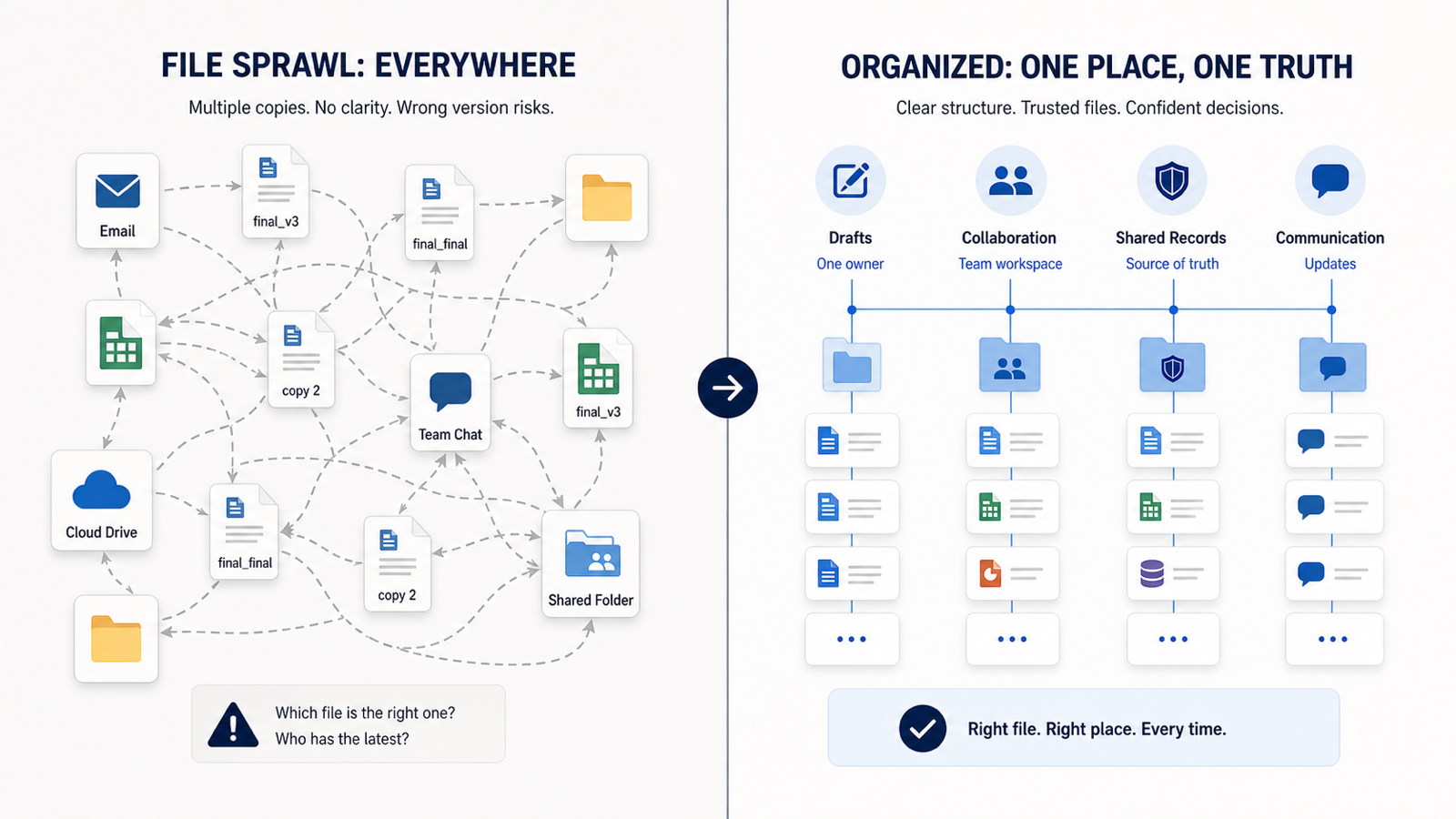
Small businesses usually do not start with a file storage problem. They start with a practical work problem: people cannot quickly find the right document, duplicate work piles up, client files live in too many places, and no one is completely sure who should have access.
Microsoft 365 can solve a lot of that, but only when it is set up around how the office actually works. Without a simple structure, it can become one more place for clutter to grow.
You have probably seen some version of this:
- A proposal is in someone’s OneDrive.
- The latest client document is in a Teams chat.
- An older version is attached to an email thread.
- A shared folder has three copies with slightly different names.
- A former employee may still own or control important files.
That is not just messy. It slows down service, creates security risk, and makes staff rely on memory instead of a system.
The Symptom: “Where Is the File?”
File confusion shows up in ordinary office work long before it becomes a formal IT issue.
Staff ask each other for the same links repeatedly. Documents get names like final_final_v3. Client information ends up in personal folders because that was the fastest place to save it at the time. Important files get shared by email attachment instead of stored in a shared workspace.
For managers and owners, the bigger concern is control. It becomes hard to tell what changed, who has access, and where the official copy actually lives.
Why This Happens in Small Offices
Most teams do not choose chaos. It usually grows from reasonable shortcuts.
OneDrive gets used like a shared drive because it is convenient. Teams are created quickly for projects, clients, or departments, but no one defines what belongs there. SharePoint exists in the background, but staff may not understand how it connects to Teams and shared document libraries.
Email attachments feel easier than links and permissions. Naming habits develop person by person. Archive decisions get postponed because everyone is busy with real work.
None of those choices are strange. The problem is that, over time, small shortcuts become the office’s unofficial file system.
The Business Cost of File Sprawl
File sprawl costs more than storage space. It costs attention, time, and trust in daily work.
Common business impacts include:
- Time wasted looking for information.
- Mistakes caused by outdated forms, contracts, or spreadsheets.
- Inconsistent client service when staff use different copies of the same document.
- Slower onboarding because new employees have to learn the file system by asking around.
- Harder offboarding when someone leaves and important files are tied to their account.
- Sensitive information shared too broadly.
- A weak audit trail if something goes wrong.
For a small office, even a few minutes of file hunting repeated across the team can turn into hours every month.
A Simple Microsoft 365 Rule of Thumb
Your staff should not have to memorize Microsoft architecture to do good work. They just need a practical place to put things.
A useful rule of thumb is:
- OneDrive is for personal work files and drafts.
- Teams is for collaboration around a team, client, department, or project.
- SharePoint is the structured shared library underneath the business workspace.
- Email is for communication, not long-term document control.
That model is not perfect for every business, but it helps people stop guessing. Drafts can start in OneDrive. Shared work belongs in the right Team or SharePoint library. Email can point people to the official file instead of creating another copy.
What a Cleaner Setup Looks Like
A small-business-friendly Microsoft 365 setup does not need to be elaborate. In fact, it should usually be simple enough that a new employee can understand it quickly.
Start by defining a few core libraries or Teams based on how the business actually works. That might include client records, proposals, finance, HR, templates, operations, or active projects.
From there, decide:
- Which folders are for active work.
- Which folders hold approved templates.
- Which areas store client records.
- Which documents belong in an archive.
- Who owns each area.
- Who should have access based on their role.
The goal is to move important business files out of personal OneDrive accounts and into shared spaces that the company controls. Permissions should be assigned by role where possible, not by random one-off sharing decisions.
It also helps to reduce email attachments. Instead of sending another copy, staff can send a link to the official file in the right location.
Finally, document the structure in one short internal guide. A useful guide does not need to be long. It just needs to answer, “Where does this type of file go?”
Do Not Overbuild It
The answer to file sprawl is not a maze of folders.
Too many folders can create the same confusion in a different shape. Strict naming rules fail if staff cannot remember them. Permissions should protect sensitive information, but they should not be so restrictive that normal work stops.
The best structure is the one the office will actually use. Start with the most common workflows, make the right place obvious, and tighten the system over time.
A Simple First Step This Week
Pick one area where file confusion happens often. Good candidates include proposals, client onboarding documents, HR forms, finance spreadsheets, or recurring reports.
For that one area, identify:
- Where those files currently live.
- Which copy is official.
- Who should own the folder or library.
- Who should have access.
- What should be archived or removed.
Clean up that one area before trying to reorganize the whole company. You will learn what works for your team, and the process will feel much less overwhelming.
Closing Thought
Microsoft 365 is strongest when it becomes the office’s working system, not just a collection of apps. A small amount of structure can save hours of searching, reduce mistakes, and make the business less dependent on one person’s memory.
If your office has files spread across email, OneDrive, Teams, and shared folders, start by choosing one messy document area and defining the official place, owner, and access rules for it.
Need a practical second opinion on your Microsoft 365 setup? Beznett LLC helps Houston-area small businesses improve reliability, security, and day-to-day workflows. You can contact Beznett to start with one messy area and build from there.